















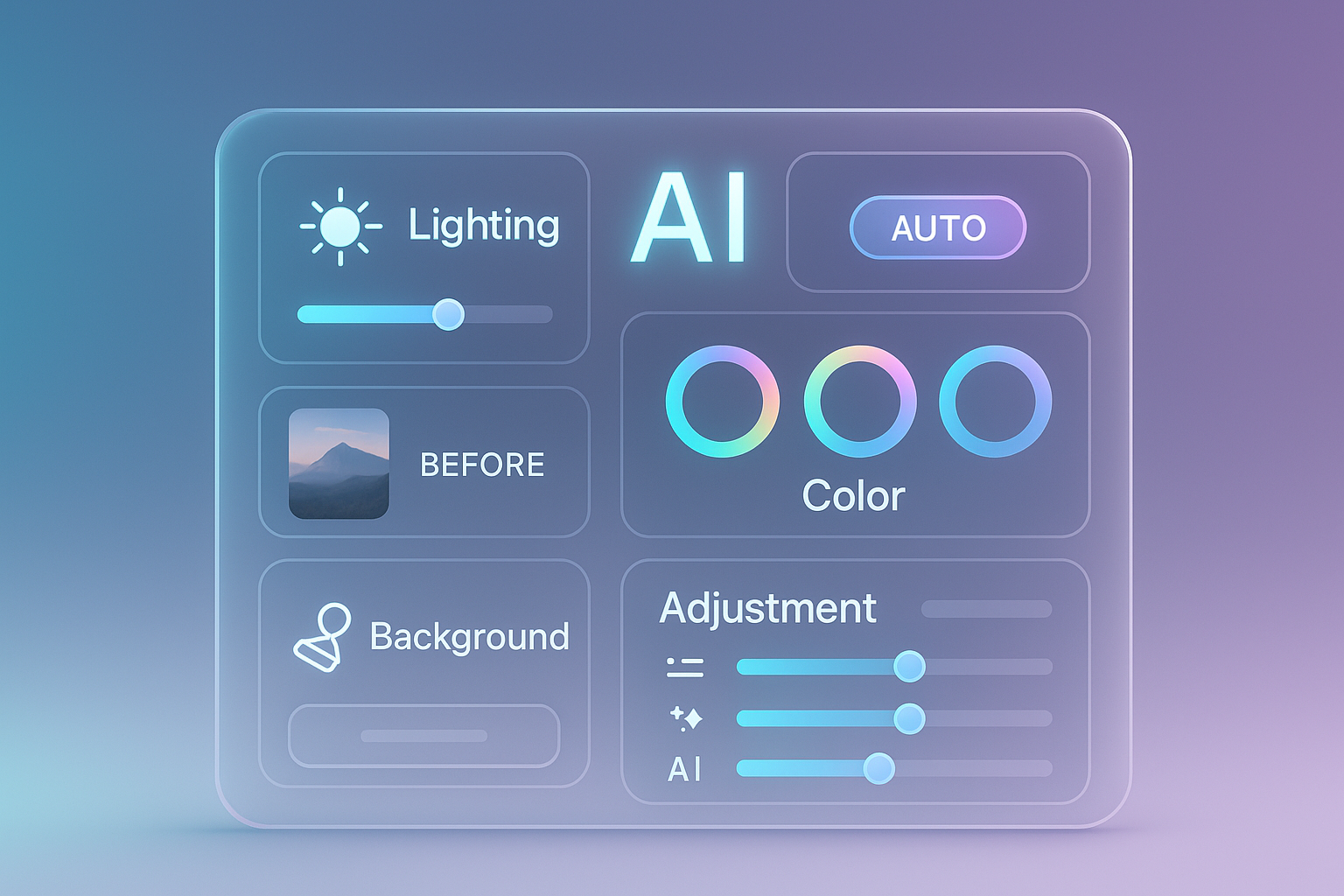
I used to spend hours fixing small issues in my photos, like uneven lighting, messy backgrounds, the same edit repeated across a dozen shots. It worked, but it was slow and rarely felt creative.
AI photo editing changed that. It’s quick, consistent, and handles the repetitive parts instantly. Just smarter tools that understand what’s in your photo and adjust it for you. This guide explains what AI photo editing actually is, the tools worth using in 2026, and the practical steps to get better results immediately.
What is AI photo editing?
AI photo editing uses machine learning to analyze a photo and automatically improve it. The software identifies faces, objects, lighting, colors, and problem areas, then applies the right adjustments without you doing the manual work.
In more simpler way, AI edits your photos by understanding what’s in them and fixing the parts that need improvement. It’s great for tasks like background cleanup, color correction, portrait retouching, and batch edits where consistency matters.
You still control the final look; AI just handles the repetitive steps so you get there quicker.
Why AI photo editing matters in 2026?
AI matters in 2026 because it removes the slowest parts of editing and gives you clean, consistent results with far less effort. Here’s what that looks like in real use:
- It speeds up everyday fixes. AI can straighten horizons, balance exposure, remove distractions, and clean up skin or noise automatically. You save time instantly because you’re not repeating the same adjustments across every photo.
- It keeps your edits consistent. If you shoot product photos, portraits, or travel sets, apply an AI preset once and use it across the entire batch. Your colors match, your lighting aligns, and you avoid the “every photo looks slightly different” problem.
- It reduces the skill barrier. You don’t need to understand masking, layers, or complex color grading. AI gives you a strong base edit, and you can tweak only what matters. This is especially helpful if you're editing on tight deadlines.
- It cuts editing time dramatically. Many photographers on Reddit report saving 50–70% of their editing time, especially when using AI for culling, noise reduction, and first-pass color correction. The takeaway: you get more time for shooting, not sorting.
- It delivers more natural results than older tools. Modern AI understands faces, objects, textures, and lighting more accurately. Use this when you want corrections that look subtle and real instead of over-processed.
- It turns editing into a quick workflow rather than a chore. Shoot, have AI do base edits, do a light manual pass, then export. This simple flow works for beginners and professionals and is now the fastest way to get polished photos.
Best AI Photo Editing Tools in 2026
AI photo editing softwares aren’t all built for the same job. Here are the tools worth using in 2026 and the exact scenarios where they work best.
When you need generated creative elements — custom backgrounds, artistic composites, or adding novel visuals beyond photo edits
- Luminar Neo helps you get natural-looking portraits, landscapes, and product photos with quick AI fixes for lighting, skies, and skin.
- Adobe Photoshop lets you remove objects, extend backgrounds, and handle complex edits using AI while keeping full manual control.
- Adobe Lightroom gives you consistent batch edits with strong AI noise reduction and adaptive presets for large photo sets.
- Canva offers fast, social-ready edits with one-click background removal and simple retouching tools.
- Pixlr lets you make quick browser-based edits without installing software, ideal for basic cleanup and color fixes.
- Lensa enhances portraits and selfies instantly with smart skin retouching, background blur, and mobile-friendly presets.
- Midjourney or DALL·E generate custom backgrounds or creative elements you can drop into your edits for unique visuals.
How to improve AI photo editing results?
AI photo editing gets much better when you guide the software a little. Here’s how to get cleaner, more consistent results from any photo editing AI you use:
- Start with the cleanest photo you can. Good lighting and sharp details help AI photo editing software analyze the image accurately and avoid odd artifacts later.
- Let AI handle the first pass, then refine the look manually. Run automatic corrections, then tweak colors or contrast yourself, this combo always produces stronger AI photo editing results than relying on automation alone.
- Avoid extremely dark or blown-out images. Every AI photo editing tool struggles when details are missing; slightly underexposed images are easier for AI to recover.
- Batch similar photos together before editing. Group images by lighting or angle and apply the same AI preset. This keeps your edits consistent and speeds up the workflow.
- Reduce AI intensity when the photo looks over-edited. Dial effects down by 20–40% to avoid the “plastic” look some photo editing AI tools create by default.
- Use masking to correct AI mistakes. If the AI brightens the wrong area or retouches too aggressively, mask the region so the software knows exactly where to apply changes.
- Mix tools when needed. Do fast background cleanup in Canva, then color-correct in Lightroom or Luminar, combining AI photo editing software often gives better results than sticking to one app.
- Check details at 100% zoom. Most AI tools create small halos or artifacts you won’t see until you zoom in, so review the image before exporting.
- Save your best edits as presets. Once you get a look you like, save it. This lets your photo editing AI reapply your style across future images instantly.
- Finish with a small creative adjustment. AI handles accuracy; you handle the mood. Add warmth, adjust shadows, or tweak color grading to make the final image feel intentional.
How AI handles batch photo editing tasks?
When you’re editing dozens or hundreds of photos, AI matters even more. Modern AI photo editing software is designed to recognize patterns across a full set of images and apply consistent adjustments without you touching them.
Here’s how batch editing actually works.
- AI detects what your photos have in common. Lighting, colors, faces, backgrounds, and exposure trends are analyzed as a group, so the AI knows how to apply the same style across the entire batch.
- The software builds a “template” from your first edit. You make manual changes on one photo, and the photo editing AI applies the same logic to every similar image. It’s ideal for events, product shoots, and portrait sets.
- Batch edits stay adaptive, not identical. AI adjusts each photo slightly based on its unique lighting or exposure, so you don’t get that “copy-paste” look older tools often produced.
- You control how aggressive the batch edit is. Most tools let you set intensity levels before running the whole batch, which keeps highlights, shadows, and colors from being pushed too far.
- You can batch-cull before you batch-edit. Some tools automatically flag duplicates, blurry shots, and low-quality images so you only edit photos that are worth keeping.
- Mistakes can be fixed in one click. If the AI misreads your style or applies an edit too strongly, tweak your first image again and reapply, the entire batch updates instantly.
- Use batch editing for consistency, not creativity. AI is great at matching tones and fixing technical issues across a set, but creative color grading or stylized edits still look better when applied manually at the end.
AI image generators and how they fit into photo editing
AI image generators have become powerful add-ons for photographers and creators. Instead of adjusting what’s already in a photo, they can create new elements you can blend into your edits. Here’s how to use them effectively with your AI photo editing workflow:
- Use generators to replace or extend backgrounds. If your original background is distracting or you need a wider frame, tools like Midjourney or DALL·E can produce clean, realistic backgrounds that you can drop into your edit.
- Create missing elements the photo didn’t capture. Need clouds, reflections, props, or texture overlays? An AI image generator can create them in the exact style or mood you want.
- Fix composition problems without reshooting. If a shot feels unbalanced, generate an object, pattern, or negative-space element, then blend it using your AI photo editing software.
- Use AI-generated references for lighting and color. You can generate a “target look” like warm portraits, moody landscapes, high-contrast product photos and then match your photo to that style using photo editing AI.
- Keep generated elements subtle. Overly detailed or mismatched assets stand out quickly; lower opacity, soften edges, and color-match them so they sit naturally in the frame.
- Maintain your original photo’s direction. AI generation should support your edit, not overtake it. Use it to enhance what you already captured, not replace your creative intent.
Quick troubleshooting guide for Common AI photo editing mistakes
AI photo editing is fast, but it isn’t perfect. When your photo editing AI produces weird artifacts or unrealistic results, here’s how to fix them quickly:
If the skin looks over-smoothed
- Lower the AI retouching strength by 20–40% and reapply.
- Switch to manual retouching for the face only; leave the rest to AI.
If colors look too saturated or artificial
- Turn off “auto color” and adjust white balance manually.
- Apply the AI edit again but reduce the vibrance instead of saturation.
If backgrounds look messy or cutouts look soft
- Use the tool’s “refine edge” or “smart mask” feature to redraw the outline.
- Run background removal in a different AI photo editing software (e.g., Canva or Pixlr), some tools are simply better at this task.
If AI brightens the wrong area
- Switch to masking mode and paint the area you want AI to target.
- Re-run the edit using a smaller brush size.
If noise reduction removes too much detail
- Apply noise reduction only to shadows, not the whole image.
- Use Lightroom or Luminar, their AI noise tools preserve detail better.
If batch edits look inconsistent
- Re-edit your “base photo” and make the style more neutral.
- Reapply the preset so the AI photo editing results update across the set.
If the final image looks ‘AI-generated’
- Add light manual adjustments: a bit of grain, a contrast tweak, or a small color shift.
- AI corrects the technical issues, you add the personality.
How to get better AI photo editing results today?
AI photo editing cannot replace you. It’s just here to cut the boring work so you can focus on the good stuff. If you want better results starting today, keep it simple: use AI for your first pass, batch-edit similar photos, dial back intensity for natural texture, and finish with a quick manual tweak.
That’s the workflow that actually works.
- Pick one AI photo editing software from the list.
- Run a few of your recent shots through it.
- Save a preset that matches your style, and try it on your next batch.
You’ll cut your editing time dramatically and get cleaner, more consistent photos without learning a complicated toolset. Start small, test fast, adjust what doesn’t feel right, and let the AI handle the repetitive work while you handle the creative direction.
Frequently Asked Questions
What is AI photo editing?
AI photo editing is the process of using software that analyzes your image and automatically improves lighting, colors, backgrounds, and details without manual adjustments.
What is a photo editing AI tool?
A photo editing AI tool is any app or software that uses machine learning to edit photos faster and more accurately than traditional manual editing methods.
How does AI photo editing software work?
It scans the image, identifies elements like faces, objects, and lighting, and applies targeted adjustments to fix color, exposure, noise, and composition issues instantly.
What are the best AI photo editing apps in 2026?
Tools like Luminar Neo, Photoshop AI, Lightroom AI, Canva, Pixlr, and Lensa are the most reliable options depending on whether you need batch edits, portraits, or quick social-ready images.
How do I improve my AI photo editing results?
Start with well-lit photos, use AI for the first pass, lower effect intensity, batch-edit similar images, and finish with a small manual color or contrast adjustment.
How does AI handle batch photo editing tasks?
It identifies similarities across your photos, applies consistent edits automatically, and adapts changes to each image so the entire set matches in tone and style.
Can AI replace manual photo editing?
AI handles repetitive and technical fixes well, but manual editing is still better for creative decisions, detailed retouching, and final color grading.
Can beginners use AI photo editing tools?
Yes. Most tools are designed to be simple, and the AI handles the complex parts so beginners can get polished results quickly.